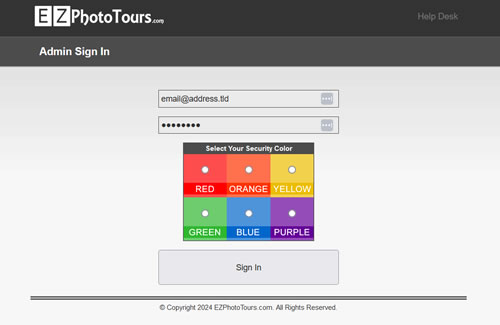
Your account activation email included a unique link to login to your account. Please login now.
Agent Profile
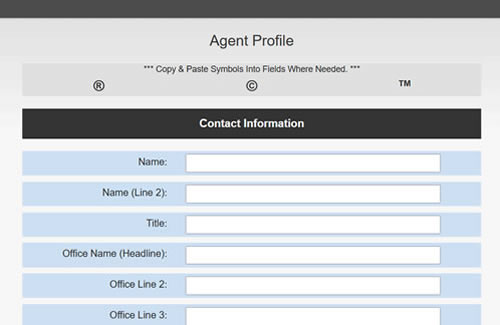
Click the “Agent Profile” link at the top of the page.
Add your contact information as needed. If you need to use a symbol copy from the the top of the page or, on a Windows-based system, windows logo + . and select symbols.
Social Media Links
Copy the full public URL of your social media profiles and paste/type them into the correct fields. Any social network link left blank will not be included in your photo tours.
External Links
External links are custom links that can point to any website or page that you would like to link to your tour. Each link requires a name. This is the text that will identify the link on your photo tours. Next, enter the complete URL for the website/webpage.
Next, upload your agent photo and company logo. If left blank, these photos will be omitted from your tours.
Creating a Photo Tour.
Click the “Photo Tours” link at the top of the page. All created tours will appear here with links to edit or delete individual tours. The number of tours created and the maximum number of active tours your account can host are listed in the upper right.
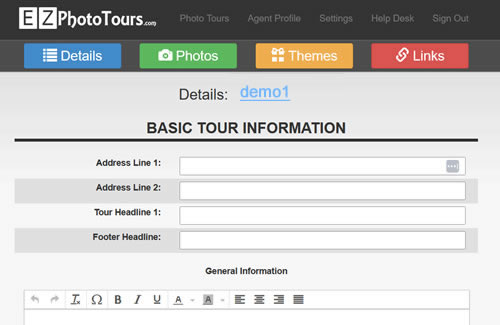
Click the “Add New Tour” button. This takes us to the details page for your new tour. Here enter the basic information about your listing as follows:
Address Line 1: Traditionally the first line of a property address (5555 Any Street), this line can also be used as a secondary headline if you would rather not provide the street address.
Address Line 2: This is the remainder of the property address (Any City ST, zip). This line should be left blank if using Address Line 1 as a secondary headline.
Tour Headline 1: This is the primary tagline for your tour. (Your Own Private Paradise! Etc.).
Footer Headline: This is the closing headline that appears after Quick Facts and General Information. Generally, this line will include pricing details or price ranges but can be used for any closing text. (Offered at $999,900! -or- Starting from the low $200,000s!).
General Information: This is the primary blurb highlighting the home or community you are showcasing.
Quick Facts: These are bullet points that will appear above General Information on tours. Any blank fields will be ignored. If all fields are left blank, Quick Facts will be disabled for the tour.
Search Engine Optimization
These links are a very important part of each tour. The information entered will be used to populate social media share posts featuring this listing. Be sure to use a title and page description that showcases each listing.
Adding Photos
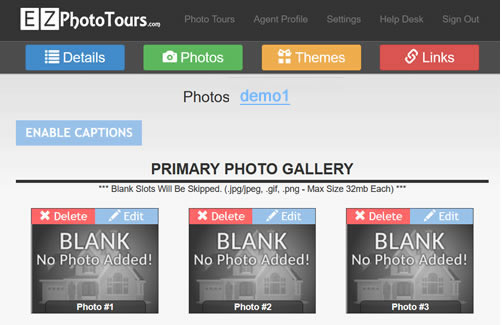
If you would like to provide a text caption for each photo in the tour, click “Enable Captions”. Next, click the edit link for Photo #1. This will open a dialog that allows you to choose a photo and set the caption (if enabled). Please note that Photo #1 will be featured in social media share posts for this tour.
Repeat this process for each photo you would like to add to a tour. Unused photo slots will be ignored.
A photo may be removed from a tour at any time using the Delete option.
Themes
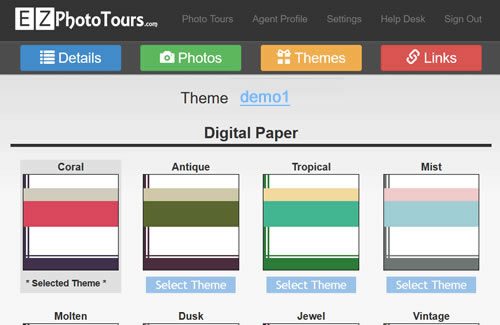
Use this screen to select the visual style and color scheme for your tour.
Links
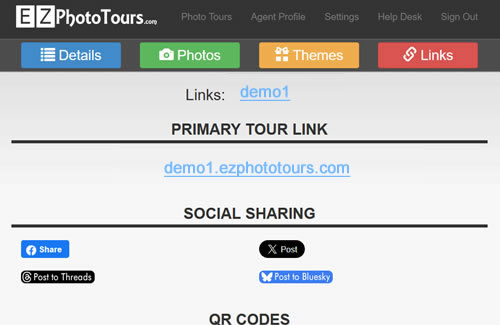
Here, you will find the unique URL of your new tour. Use the social media sharing links to quickly publish tours across your social media profiles. Auto-generated QR codes can be copied and pasted into print media.
A simple ready-made flyer is also available for printing.
Please rate this article to help us improve our Knowledge Base.